How to Add a “Scroll to Top” Button to Your Shopify Store (With Snippet + Smooth Scroll)
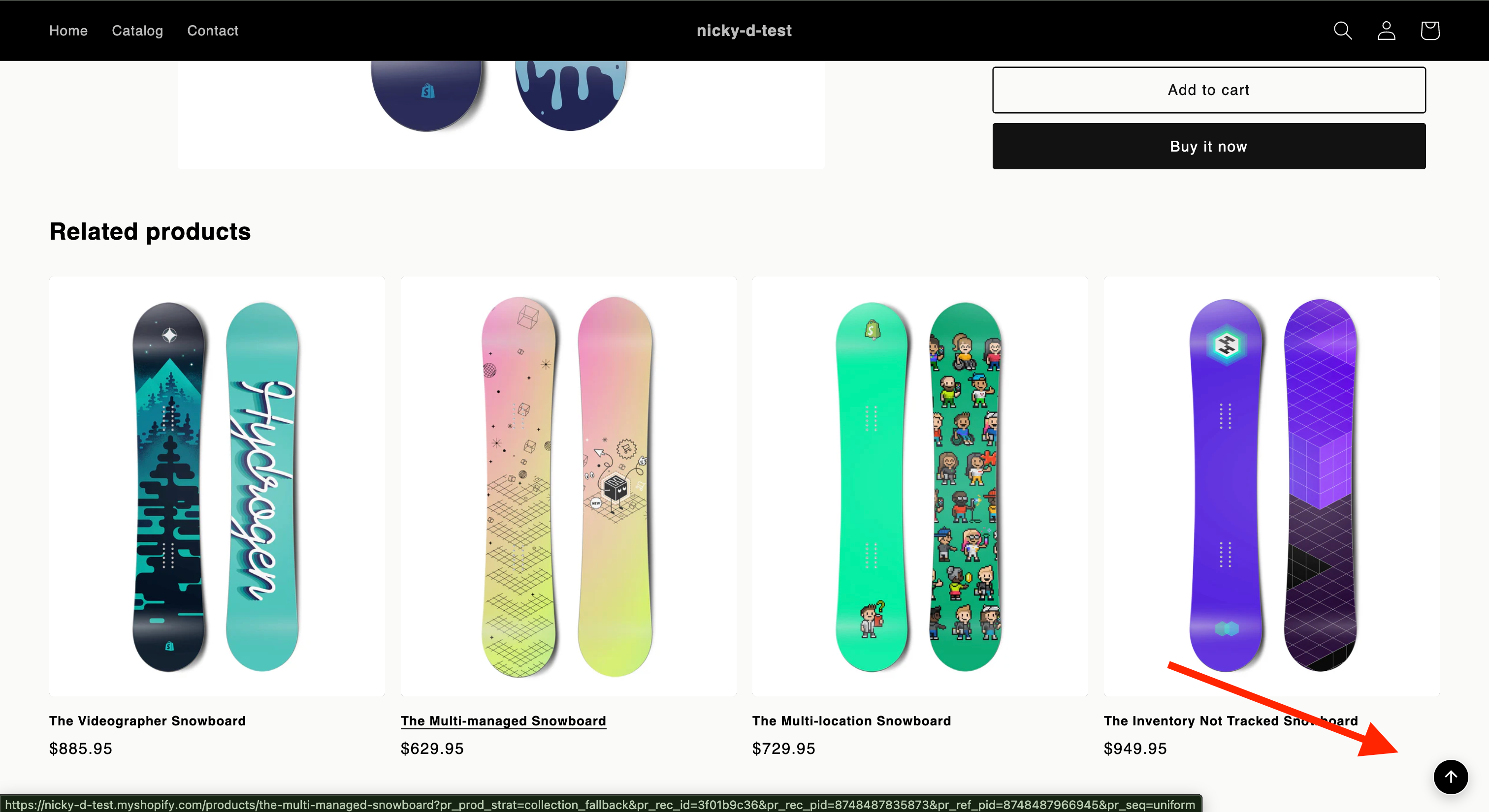
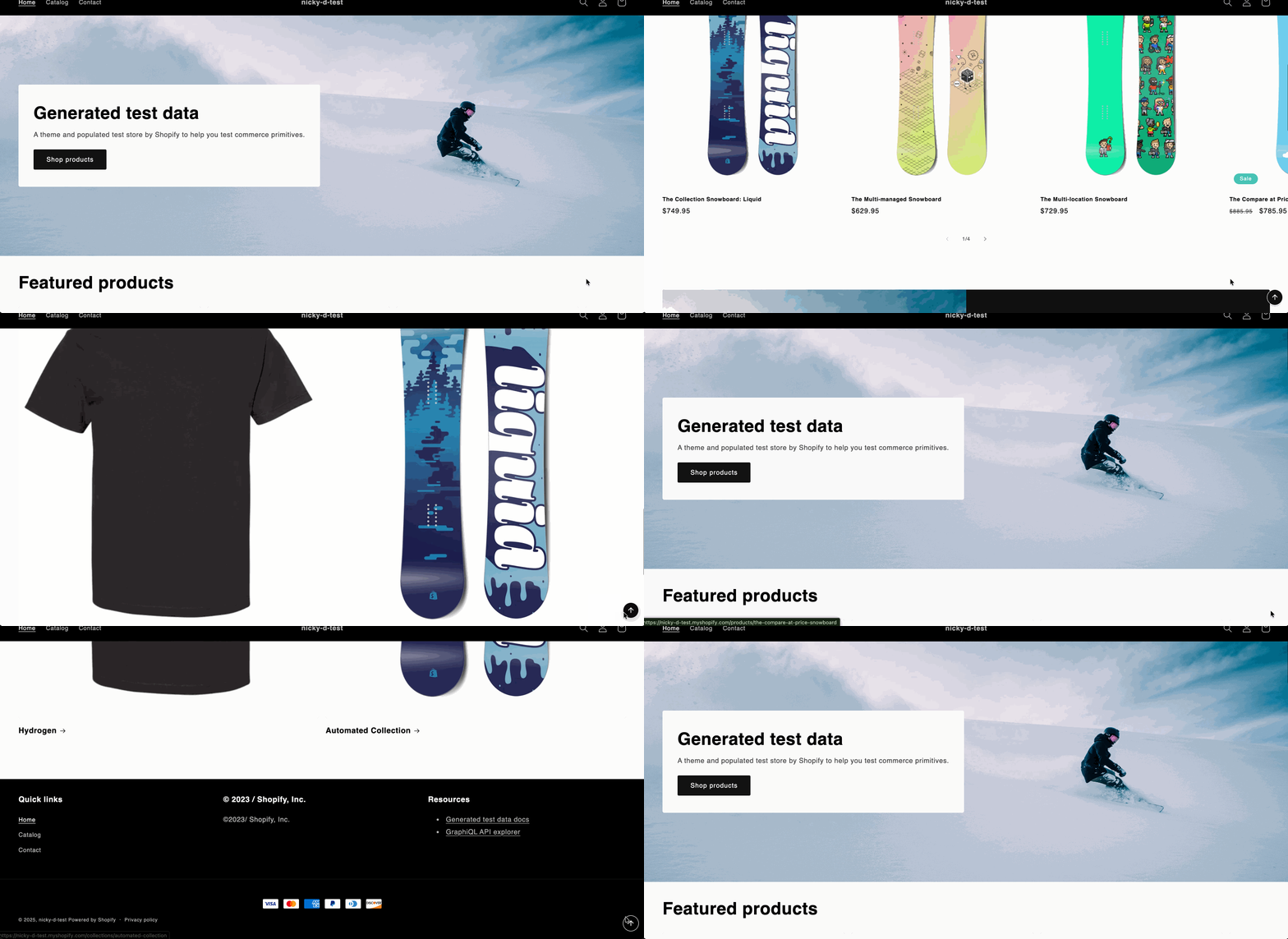
Long product pages and blogs are common in Shopify stores — but scrolling all the way back to the top can be annoying for customers. A simple solution is to add a Scroll to Top button: a floating action button that appears only after the user scrolls down and returns them smoothly to the top with one click.
In this tutorial, you’ll learn how to add a beautiful, modern Scroll to Top feature to any Shopify theme. No external JavaScript libraries are required, and it works with all Online Store 2.0 themes.
Code: https://github.com/ndrishinski/blogs/tree/master/scroll-to-top
Prefer video?
Enjoy, otherwise read on!
✨ What We’re Building
-
A floating button in the bottom-right corner
-
Hidden until the user scrolls down
-
Smooth scrolling animation
-
Clean, minimal design using SVG
-
Lightweight and theme-friendly
Here’s how to add it to your store.
Step 1 — Create a New Snippet
In your Shopify dashboard:
Online Store → Themes → Edit Code
Open the Snippets folder and click Add a new snippet.
Name it:scroll-to-top.liquid
Then paste the following code inside:
  <div id="scrollToTop" class="scroll-to-top hidden">
  <svg width="20" height="20" viewBox="0 0 24 24" fill="none">
    <path stroke="currentColor" stroke-width="2" d="M12 19V5M5 12l7-7 7 7"/>
  </svg>
</div>

<style>
  .scroll-to-top {
    position: fixed;
    bottom: 2rem;
    right: 2rem;
    background: #000; /* Change for brand */
    color: #fff; /* Change for icon color */
    padding: 0.75rem;
    border-radius: 9999px;
    cursor: pointer;
    display: flex;
    align-items: center;
    justify-content: center;
    opacity: 0;
    pointer-events: none;
    transition: opacity .3s ease, transform .3s ease;
    box-shadow: 0 4px 12px rgba(0,0,0,.2);
    z-index: 999;
    border: 1px solid #fff; /* Change for border color */
  }

  .scroll-to-top.show {
    opacity: 1;
    pointer-events: auto;
    transform: translateY(0);
  }

  .scroll-to-top.hidden {
    transform: translateY(20px);
  }

  .scroll-to-top svg {
    display: block;
  }

  @media (hover:hover) {
    .scroll-to-top:hover {
      background: #333;
    }
  }
</style>

<script>
  document.addEventListener('DOMContentLoaded', () => {
    const btn = document.getElementById('scrollToTop');

    const toggleVisibility = () => {
      if (window.scrollY > 300) {
        btn.classList.add('show');
        btn.classList.remove('hidden');
      } else {
        btn.classList.remove('show');
        btn.classList.add('hidden');
      }
    };

    window.addEventListener('scroll', toggleVisibility);

    btn.addEventListener('click', () => {
      window.scrollTo({
        top: 0,
        behavior: "smooth"
      });
    });
  });
</script>
This snippet includes:
-
The HTML markup for the button
-
All styling for the floating animation
-
The JavaScript that shows/hides the button and scrolls smoothly
Step 2 — Include the Snippet in Your Theme
Now go to:
Layout → theme.liquid
Scroll down to just above the closing </body> tag and paste:
{% render 'scroll-to-top' %}
Placing it here ensures the snippet loads after the rest of your page content and appears across your entire store.
🎨 Customizing the Design
Here are a few easy ways to match this feature to your brand:
Change the button color
Inside the CSS:
background: #000;
Switch #000 to any brand color.
Increase the size of the button
Modify padding:
padding: 1rem;
Replace the icon
Swap the SVG with any icon from:
-
Heroicons
-
Lucide
-
Iconscout
-
Remix Icons
Just keep the SVG small (20–24px).
Adjust the scroll threshold
By default, the button appears after 300px of scrolling.
Change:
if (window.scrollY > 300)
🎯 Why This Approach Works
-
No external libraries → faster performance
-
Works in every Shopify theme
-
Uses CSS transitions + native smooth scrolling
-
Easy to customize
-
Clean markup and no Liquid conflicts
🚀 Final Thoughts
Adding a Scroll to Top button is one of the fastest ways to improve user experience on long Shopify pages. It looks professional, it’s useful, and it’s easy for merchants to understand.
If you want an advanced version — such as:
-
GSAP animations
-
A Theme Editor setting to let merchants toggle the button on/off
-
Different shapes, icons, or positions
Just let me know and I’ll create that version too!